How to Live Stream on YouTube: Setup, Requirements and a First-Stream Playbook for Creators
You do not need thousands of subscribers to go live on YouTube — but you do need a verified channel, the right setup for your format, and a plan for the first fifteen minutes. This guide covers the 2026 requirements, all four ways to stream, and the mistakes that sink first streams.
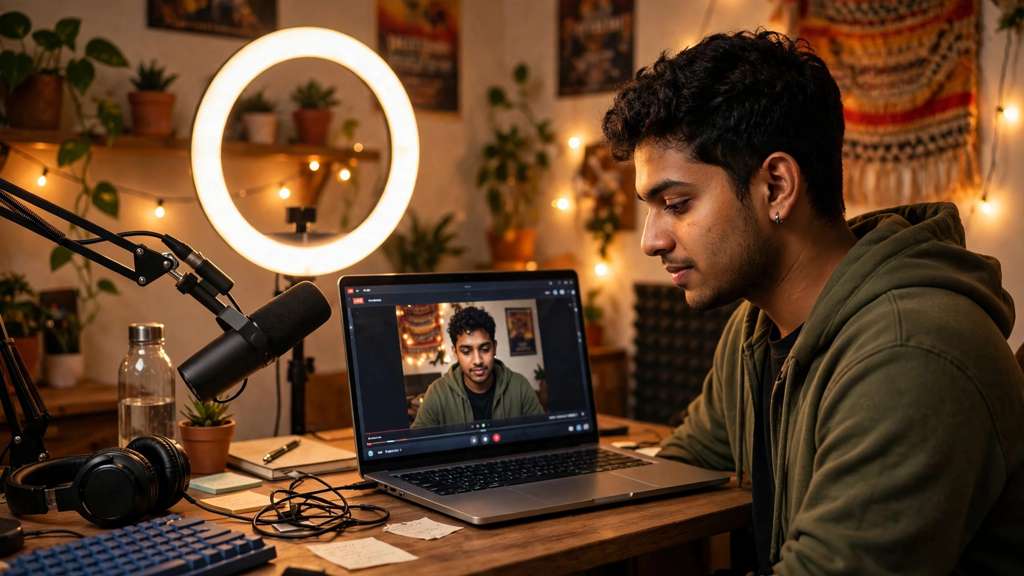
For years, going live on YouTube felt like something only big channels did — a polished broadcast with cameras, lights and a production team. That is no longer true. In 2026, a creator can go live from a phone on a morning walk, from a laptop webcam in a bedroom studio, or from a full encoder setup with overlays and guests. The barrier is not equipment any more. It is knowing the rules, picking the right setup for the format you want, and having a plan for the first fifteen minutes — the stretch where most first streams quietly lose their audience.
Live streaming also matters more than it used to. Vertical live streams now appear in the Shorts feed, so a live broadcast can reach people who have never seen your channel. And live is the one format where the audience talks back in real time, which makes it the fastest way for a small creator to turn casual viewers into a community. This guide explains how to live stream on YouTube as it actually works in 2026: the eligibility rules, the four ways to go live, a first-stream setup you can follow tonight, and the mistakes that sink most first attempts.
Who Can Go Live on YouTube in 2026
Before anything else, your channel has to be eligible. The rules are simple, but the first one catches people out because it takes time.
First, your channel must be verified with a phone number, and you must have had no live streaming restrictions in the past 90 days. Second, you must be at least 16 years old to live stream on your own. YouTube says streams featuring 13 to 15 year olds who are not visibly accompanied by an adult may have live chat disabled, and the account may temporarily lose access to live chat or other features. Third, if you want to stream from the YouTube mobile app, you need at least 50 subscribers. That 50-subscriber rule applies only to mobile — webcam and encoder streams have no subscriber minimum, so a brand-new channel can still go live from a computer on day one.
The part people miss is the wait. Enabling live streaming for the first time can take up to 24 hours, so turn it on at least a day before your planned first stream, not the morning of it. The official requirements are listed on YouTube's own help page, Get started with live streaming, and it is worth reading before you schedule anything important around a first broadcast.
The Four Ways to Go Live — and Which One Fits You
YouTube gives you four methods, and they are not just different buttons. Each one suits a different kind of stream, and choosing the wrong one is the most common reason a first live feels harder than it should.
Mobile is best for quick updates, events, behind-the-scenes moments and vertical broadcasts from your phone. It needs Android 8.0 or later, or iOS 8 or later, plus the 50-subscriber minimum. If your idea is "talk to my audience while I am out somewhere", this is the method.
Webcam is the easiest desktop option. You broadcast straight from your computer through Chrome or Firefox with no extra software, which makes it ideal for talking-head streams, Q&As, teaching sessions and interviews where one camera and one microphone are enough. For most creators doing their first live, webcam is the right starting point.
Encoder is for productions with more than one input: screen shares, multiple cameras, branded overlays, pre-recorded clips, guest feeds. Free software like OBS Studio covers most of this; Streamlabs adds creator templates, Ecamm Live suits Mac users who want a polished setup in one app, and vMix fits multi-camera events. Use an encoder when the stream itself is the product — a gaming session, a product launch, a webinar — not when a simple conversation would do.
Console streaming is for gaming directly from a PlayStation, Xbox or Nintendo console, following each console maker's own instructions. If your channel is gaming-first, this is the shortest path to a live audience without building a PC setup.
One more thing worth knowing: by default, your live streams now go live in both horizontal (16:9) and vertical (9:16) formats at the same time, and the vertical version can surface in the Shorts feed, where viewers get a scrollable live feed with fan funding features. You can adjust the vertical layout — centre crop, fit to phone width, or stacked — in the Live Control Room, but you cannot add the vertical format once the stream has started.
Setting Up Your First Stream, Step by Step
Here is the whole setup in order. Do it once slowly and every stream after this is a repeat.
Step 1 — Verify and enable, a day early. Verify your channel at youtube.com/verify, then open YouTube Studio, click Create, and choose Go live. If live streaming has not been activated yet, YouTube will prompt you to enable it. Remember the wait can be up to 24 hours, so do this the day before.
Step 2 — Pick your method and test it privately. For a webcam stream, check framing, microphone levels and lighting in a private test. For an encoder, copy the stream URL and stream key from the Live Control Room into your encoder — and treat that stream key like a password. Anyone with it could broadcast through your channel, so if you think it has been exposed, generate a new one before going live. The detailed walkthrough in the Influencer Marketing Hub live streaming guide covers the encoder settings and the 15-minute pre-flight checklist well if you want a second reference.
Step 3 — Schedule the stream instead of starting cold. Give the stream a title that promises something specific, write a short description, pick a thumbnail, set the audience setting, and choose a date and time. Scheduling gives you a shareable watch page before the broadcast begins, so you can promote it and let people set a reminder. Announce it where your audience already is — a Community post on YouTube itself is the most direct route, since it reaches subscribers between uploads.
Step 4 — Check your internet. Your available upload speed needs to exceed the total bitrate you are sending to YouTube, with around 20 percent extra headroom. A connection that looks fine early in the morning can behave very differently when the household is using the same network, so test from the same place and time of day you will actually stream. If the upload is weak, drop the resolution before you drop the stream — a stable 720p broadcast beats a 1080p one that freezes every minute.
Step 5 — Run a rehearsal. Do not make the public broadcast your first full test. For mobile streams, Live Practice Mode gives eligible creators a private rehearsal. For webcam or encoder, set up a private or unlisted test stream and watch it back on another device. Check audio first — viewers forgive soft video far more readily than they forgive bad audio.
What Should You Actually Stream?
The technology is the easy half. The harder question is what the stream is for, because that decides the format, the length and what you ask viewers to do next. A few formats that work well for small creators:
A Q&A is the lowest-effort, highest-connection format. Collect questions in advance through a Community post, then answer them live. A teaching stream works when you can show something — a screen share of your workflow, a live edit, a tool walkthrough. A behind-the-scenes stream is good for launches: show the making of a video or product and let the audience feel like insiders. A guest stream brings another creator's audience with it; tools like StreamYard or Restream make guest management easier than building it inside an encoder. And a watch-along or reaction format works only if you add real commentary — silent viewing is not a stream.
Whatever the format, write the opening before you go live. The first two minutes should say what the stream is, what viewers will get by staying, and what you want them to do — ask a question, drop a comment, stick around for the part at the end. A clear opening is the difference between a stream that grows and one that slowly empties. The same skill matters in recorded video too, which is why our guide on scripting a video that holds attention to the end applies almost word for word to a live opening: promise something specific, then deliver it.
Can You Earn Money From Live Streams?
Yes, but the maths is different from regular video. Live streams can earn through Super Chat and Super Stickers (viewers pay to highlight their messages), channel memberships, and ads on the live broadcast and its archive — including midrolls and pre-rolls on horizontal streams. Vertical live streams in the Shorts feed do not get live ad midrolls, but they do get fan funding features and memberships.
All of this sits behind the YouTube Partner Program, which needs 1,000 subscribers and either 4,000 valid public watch hours in the last 12 months or 10 million Shorts views in 90 days. Before you reach that, live streaming still pays in a different currency: it is the fastest way to build the watch time and the loyal audience that gets you to the threshold. If you want the full picture of what small channels can earn before and after monetization, read our guide on YouTube Shorts monetization in 2026, which covers the same thresholds and realistic RPM for Indian creators.
Two practical notes. First, members-only live streams are a real option: they give your most loyal viewers something exclusive and give everyone else a reason to join. Second, keep the archive in mind. Streams under 12 hours are archived automatically, and a good live can keep earning views as a video afterwards — so give the archive a proper title and thumbnail instead of leaving the default.
Mistakes That Sink First Streams
Most failed first streams fail the same few ways, and all of them are avoidable.
Starting without a test. The public stream should never be the first time you have run the setup. One private rehearsal catches the muted microphone, the wrong camera and the flickering light.
Sharing or leaking the stream key. It is a credential. Never paste it into a chat, a screenshot or a shared document. Regenerate it if it has ever been visible.
Ignoring the chat. Live is the one format where the audience is in the room. Read names out, answer questions as they come, and pin a comment with the stream's promise. A creator who talks with the chat keeps people; a creator who talks at a camera loses them.
No plan for the internet dropping. Keep a mobile hotspot ready as a backup, and know how to switch to it. If the stream does drop, come back, say so plainly, and continue — viewers are far more forgiving of an honest restart than of a frozen frame.
Breaking the rules by accident. All live content must follow the Community Guidelines. A live stream strike prevents you from live streaming for 14 days, and you cannot dodge it by using another channel — that counts as circumvention and can end in termination. Keep the content clean, keep the chat moderated, and set slow mode or hold potentially inappropriate messages for review before your first big stream.
After the Stream Ends
The work is not over when you click End. Check the Live Control Room analytics: peak concurrent viewers, average view duration, chat rate, and where people joined from. Note the minute where viewership dipped — that is usually where the energy dropped or a segment dragged. Then cut the best two or three moments into Shorts, and link the full archive from a Community post so latecomers can still watch. One live stream, done properly, becomes a Q&A video, two Shorts and a community post — four pieces of content from one hour of work.
Finally, keep a simple rhythm. A weekly live at the same time builds a habit faster than random streams, and a regular slot is something you can promote in advance every single week. YouTube allows up to 10 active streams per channel, so there is plenty of room to schedule ahead.
Frequently Asked Questions
Do I need 1,000 subscribers to live stream on YouTube?
No. You need a verified channel, no live streaming restrictions in the past 90 days, and to be at least 16. Only mobile streaming needs subscribers — at least 50. Webcam and encoder streaming have no subscriber minimum, so you can go live from a computer with a brand-new channel.
How long does it take to enable live streaming for the first time?
Up to 24 hours after you verify your channel and turn live streaming on. Enable it at least a day before your first planned stream.
Can I live stream on YouTube from my phone?
Yes, if your channel is verified, has at least 50 subscribers, and runs Android 8.0 or later or iOS 8 or later. Channels with 50 to under 1,000 subscribers may see limited mobile live visibility and archives set to private by default.
Do live streams earn money?
Yes, once you are in the YouTube Partner Program: Super Chat, Super Stickers, memberships and ads on the live and its archive. Before that, live streams still help you reach the 1,000-subscriber and watch-hour thresholds faster than uploads alone.
Conclusion
Learning how to live stream on YouTube is mostly a matter of doing the boring steps in the right order: verify your channel, enable live a day early, pick the simplest method that fits your format, test it privately, and open with a clear promise. The equipment can stay simple — a phone, a webcam or a free encoder — because what keeps people watching a live is not production polish. It is a creator who talks with the room, answers in real time, and shows up at the same time next week. Do your first stream this week, keep it short, and treat it as a rehearsal with an audience. The second one will already feel easy.
Related Marketplace Assets
AI YouTube Title Generator
Generate curiosity-driven, high-converting video and article title variations engineered to capture viewer interest.
AI YouTube Description Generator
Craft structured YouTube video descriptions featuring above-the-fold hooks, key timestamps, and clear calls to action.
AI YouTube Script Generator
Generate comprehensive, high-retention YouTube video scripts with visual B-roll cues, pacing markers, and outro CTAs.